
Deploying VMware Cloud Foundation (VCF) in environments with limited or no external network access – whether for security or logistical reasons – requires a little planning. One key piece is having a local depot for software packages. In this post, we’ll walk through setting up an offline depot web server for VCF 9, allowing you to keep your deployments running smoothly even when disconnected from the internet. We’ll cover the necessary components, configuration steps, and best practices to ensure a reliable and accessible offline repository. Let’s dive in!
Updated as of : 8/12/2025
What is Required
- Generate download token on Broadcom Support Portal.
- The offline depot must have:
- The latest version of the VCF Download Tool, which you can download from the Broadcom Support Portal.
- Virtual machine with Internet connectivity – Step by Step Walk through on how to build a Photon Linux Machine here – https://virtualbytes.io/deploying-configuring-the-vmware-lcm-bundle-utility-on-photon-os-a-step-by-step-guide/
- Configure TCP keepalive in your SSH client to prevent socket connection timeouts.
Log into Broadcom Support Portal – My Downloads – VMware Cloud Foundation 9.0.0.0 -> Drivers & Tools
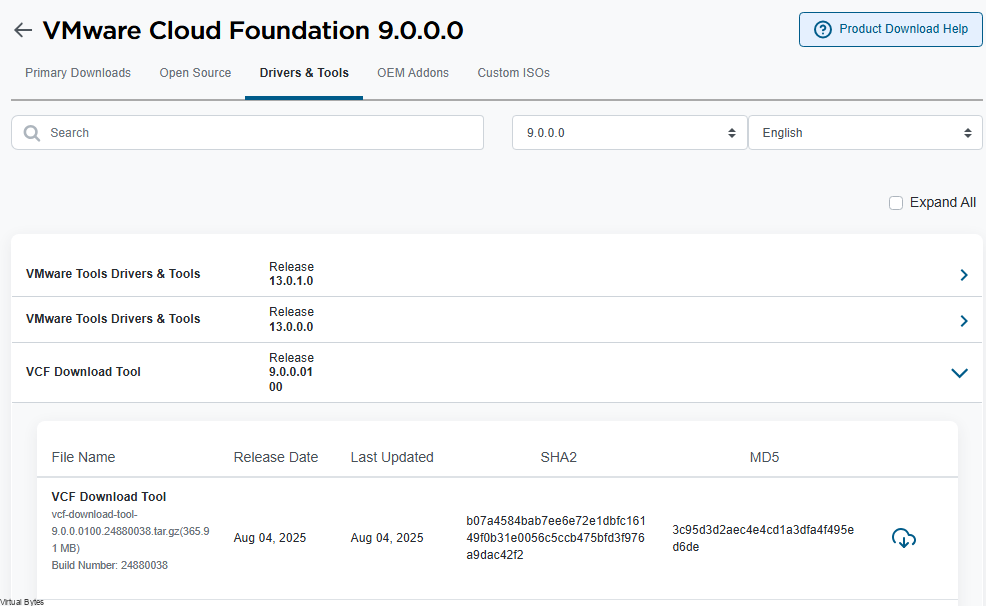
Upload the VCF Bundle Utility to the LCM VM and extract it into a directory. I chose /root/
tar -xzvf vcf-download-tool-9.0.0.0100.24880038.tar.gzIMPORTANT: Your Broadcom Download Token is confidential. Keep it secure!
After extracting the VCF download tool, create a text document containing your authentication token for downloading the binaries within the same directory as VCF Download Tool.
Change directory to the bin directory located within the VCF Download Tool’s extraction location.
cd bin/Execute the VCF Bundle Tool, see the example below for the high-level commands you can use.
./vcf-download-toolCommands:
- binaries – Management of the binaries files within the system.
- metadata – Management of the metadata files within the system.
- releases – Operations related to the VCF releases.
- umds – Manage the installation and execution of the UMDS (Update Manager Download Service) tool.
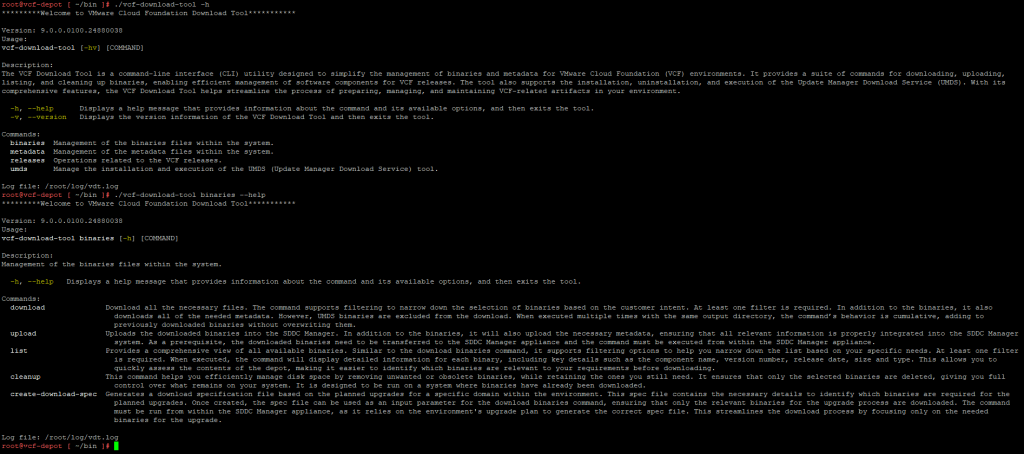
NOTE: The
--typeparameter specifies the type of binaries to download. Use--type=installfor installation binaries and--type=upgradefor upgrade binaries. Examples below of a Install and Upgrade process.
Install Method:
./vcf-download-tool binaries download --vcf-version 9.0.0 --automated-install -d /var/www/offline-bundles --depot-download-token-file /root/token.txt --type=install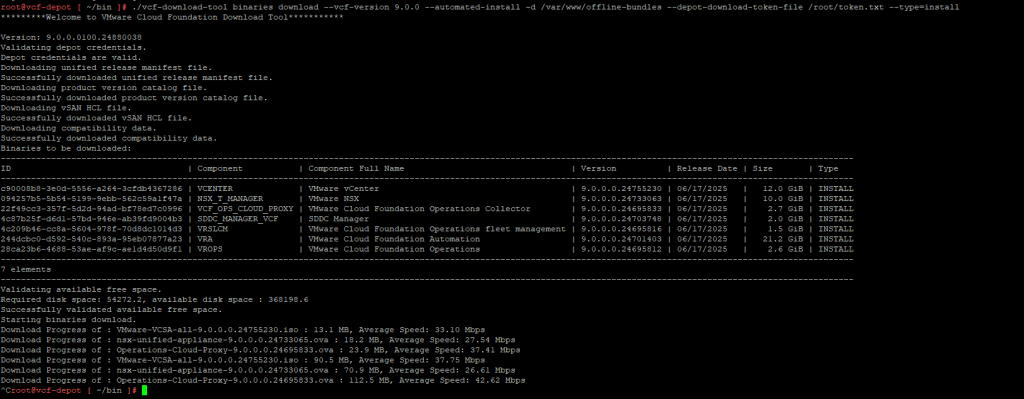
Upgrade Method
./vcf-download-tool binaries download --vcf-version 9.0.0 --automated-install -d /var/www/offline-bundles --depot-download-token-file /root/token.txt --type=upgrade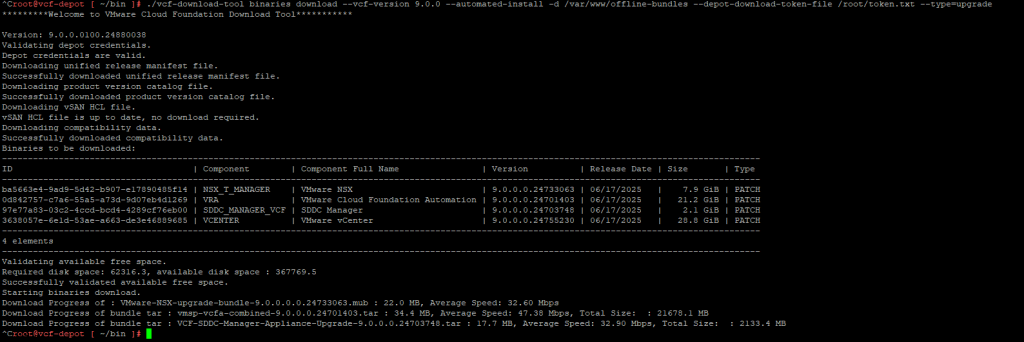
VCF Full Offline Depot Download
For offline deployments, this is the most preferred option because the installation and upgrade packages are included in the depot.
Before you begin the download, confirm that your VCF depot virtual machine has sufficient storage space. Then, create a directory – such as /depot – to store all of the downloaded binaries. You can choose a different location if you prefer.
mkdir /depotChange the permissions of the /depot directory
chmod -R 755 /depot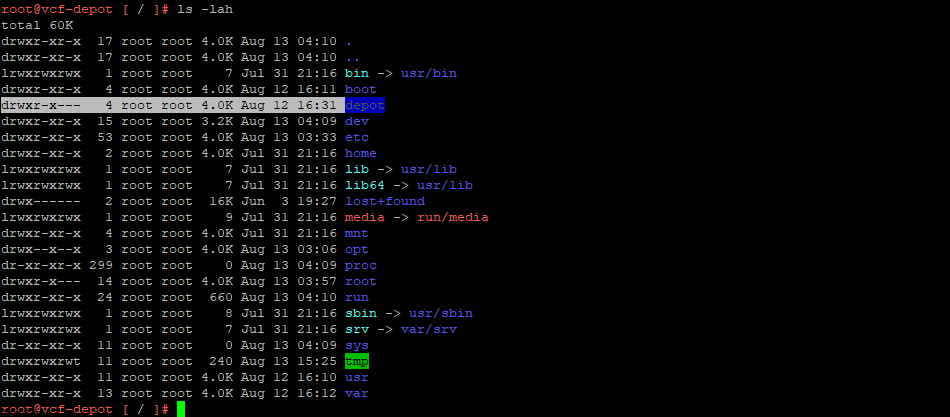
Preview of the /depot directory

With the depot directory created, we can now prepare to stage the syntax for downloading VCF binaries
./vcf-download-tool binaries download --vcf-version 9.0.0 --depot-store /depot --depot-download-token-file /root/token.txt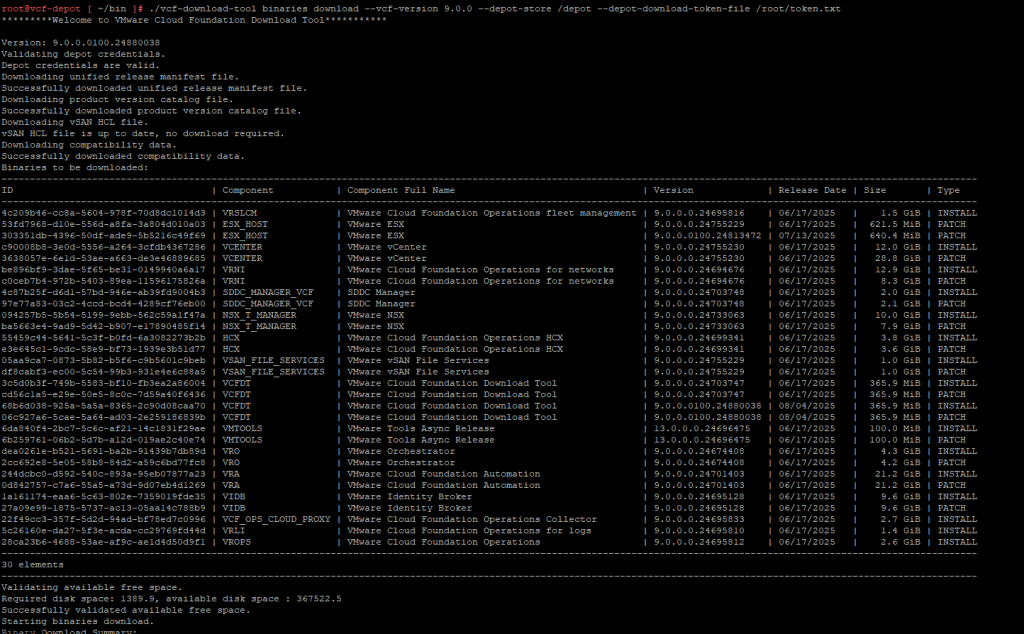
When executed, the VCF Download tool will connect to the Broadcom Depot to gather all required bundles, patches, ISOs, and VMware Tools for your offline depot.
Once the command is executed, the download will take at least 10-30 minutes to complete, depending on your internet connection. This is due to the large size of the OVA files, ISOs, and other patches, totaling 133GB
Note: The VCF Download tool tracks downloaded files and will resume interrupted downloads from the point of failure. You can also re-run the tool to pull the latest versions of OVAs and ISOs into your /depot directory. When re-run, it will verify file contents using checksums, which may take some time.
VCF Depot Structure
root@vcf-depot [ /depot ]# tree
.
├── PROD
│   ├── COMP
│   │   ├── ESX_HOST
│   │   │   ├── VMware-VMvisor-Installer-9.0.0.0100.24813472.x86_64.iso
│   │   │   └── VMware-VMvisor-Installer-9.0.0.0.24755229.x86_64.iso
│   │   ├── HCX
│   │   │   ├── hcx-unified-appliance-9.0.0.0.24699341.ova
│   │   │   └── hcx-unified-appliance-upgrade-bundle-9.0.0.0.24699341-signed.tar.gz
│   │   ├── NSX_T_MANAGER
│   │   │   ├── nsx-unified-appliance-9.0.0.0.24733065.ova
│   │   │   ├── VMware-NSX-upgrade-bundle-9.0.0.0.0.24733063.mub
│   │   │   └── VMware-NSX-upgrade-bundle-9.0.0.0.0.24733063-pre-check.pub
│   │   ├── SDDC_MANAGER_VCF
│   │   │   ├── Compatibility
│   │   │   │   └── VmwareCompatibilityData.json
│   │   │   ├── VCF-SDDC-Manager-Appliance-9.0.0.0.24703748.ova
│   │   │   └── VCF-SDDC-Manager-Appliance-Upgrade-9.0.0.0.24703748.tar
│   │   ├── VCENTER
│   │   │   ├── VMware-vCenter-Server-Appliance-9.0.0.0.24755230_OVF10.ova
│   │   │   ├── VMware-vCenter-Server-Appliance-9.0.0.0.24755230-updaterepo.zip
│   │   │   └── VMware-VCSA-all-9.0.0.0.24755230.iso
│   │   ├── VCFDT
│   │   │   └── vcf-download-tool-9.0.0.0.24703747.tar.gz
│   │   ├── VCF_OPS_CLOUD_PROXY
│   │   │   └── Operations-Cloud-Proxy-9.0.0.0.24695833.ova
│   │   ├── VIDB
│   │   │   └── vidb-external-9.0.0.0.24695128.tar
│   │   ├── VMTOOLS
│   │   │   ├── portal_input.xml
│   │   │   ├── VMware_locker_tools-light_13.0.0-0.24696475.vib
│   │   │   └── vmw-ESXi-9-vmtools-13.0-metadata.zip
│   │   ├── VRA
│   │   │   └── vmsp-vcfa-combined-9.0.0.0.24701403.tar
│   │   ├── VRLI
│   │   │   └── Operations-Logs-Appliance-9.0.0.0.24695810.ova
│   │   ├── VRNI
│   │   │   ├── VMware-Cloud-Foundation-Operations-for-Networks-9.0.0.0.24694676-collector.ova
│   │   │   ├── VMware-Cloud-Foundation-Operations-for-Networks-9.0.0.0.24694676-platform.ova
│   │   │   └── VMware-Cloud-Foundation-Operations-for-Networks.9.0.0.0.24694676.upgrade.bundle
│   │   ├── VRO
│   │   │   ├── O11N_VA-9.0.0.0.24674408.ova
│   │   │   └── O11N_VA-9.0.0.0.24674408-updaterepo.iso
│   │   ├── VROPS
│   │   │   └── Operations-Appliance-9.0.0.0.24695812.ova
│   │   ├── VRSLCM
│   │   │   └── VCF-OPS-Lifecycle-Manager-Appliance-9.0.0.0.24695816.ova
│   │   └── VSAN_FILE_SERVICES
│   │       ├── VMware-vSAN-File-Services-Appliance-9.0.0.0.24755229-cloud-components.vmdk
│   │       ├── VMware-vSAN-File-Services-Appliance-9.0.0.0.24755229-log.vmdk
│   │       ├── VMware-vSAN-File-Services-Appliance-9.0.0.0.24755229_OVF10.cert
│   │       ├── VMware-vSAN-File-Services-Appliance-9.0.0.0.24755229_OVF10.mf
│   │       ├── VMware-vSAN-File-Services-Appliance-9.0.0.0.24755229_OVF10.ovf
│   │       └── VMware-vSAN-File-Services-Appliance-9.0.0.0.24755229-system.vmdk
│   ├── metadata
│   │   ├── manifest
│   │   │   └── v1
│   │   │       └── vcfManifest.json
│   │   └── productVersionCatalog
│   │       └── v1
│   │           ├── productVersionCatalog.json
│   │           └── productVersionCatalog.sig
│   └── vsan
│       └── hcl
│           ├── all.json
│           └── lastupdatedtime.json
└── umds

27 directories, 39 files
Legacy Versions of VMware Cloud Foundation
If you require installation or upgrade binaries for older versions of VMware Cloud Foundation, the VCF Download tool remains a reliable solution.
The following syntax example is for downloading binaries for a fresh installation of VMware vSphere Foundation or VMware Cloud Foundation.
./vcf-download-tool binaries download --vcf-version 5.0.0.0 -d /var/www/offline-bundles --depot-download-token-file /root/token.txt --type=install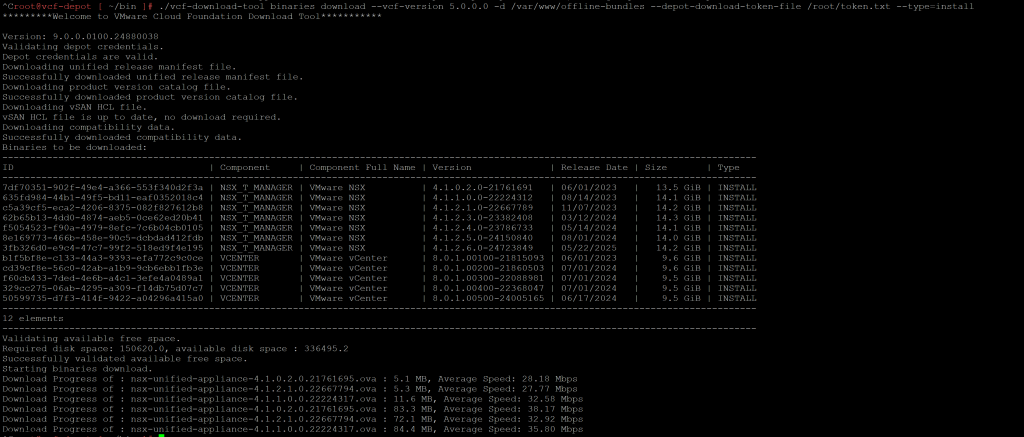
The following syntax example is for downloading binaries for upgrade of VMware vSphere Foundation or VMware Cloud Foundation.
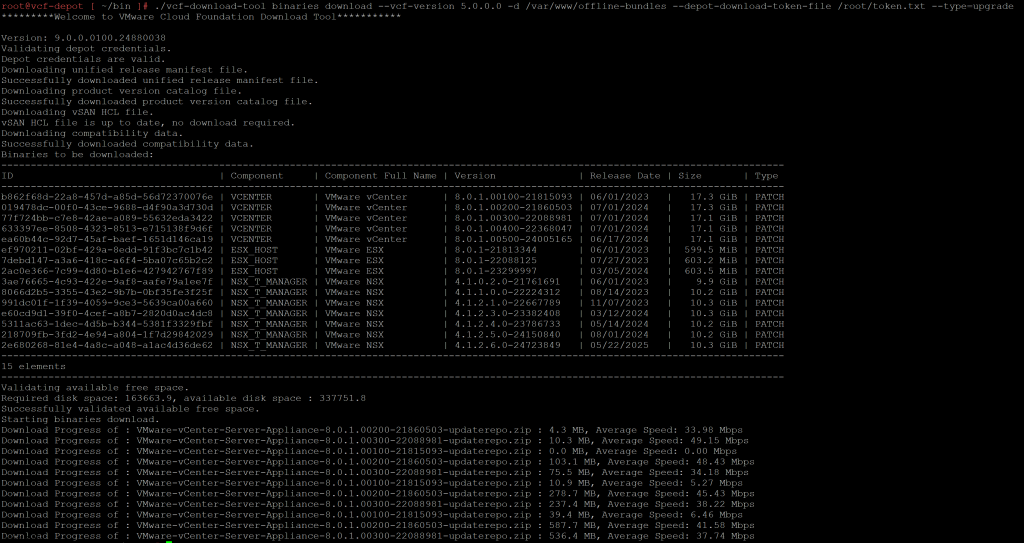
./vcf-download-tool binaries download --vcf-version 5.0.0.0 -d /var/www/offline-bundles --depot-download-token-file /root/token.txt --type=upgrade