
In VMware Cloud Foundation (VCF) 9.0, the Operations Fleet Manager appliance comes with Docker pre-installed to support containerized services. By default, Docker configures its primary bridge network (docker0) using the 172.17.0.0/16 CIDR range. While this works fine in isolated environments, it frequently overlaps with existing customer infrastructure subnets – especially in management, overlay, or VPN-routed networks.
When a conflict occurs, you may experience:
- Failed communication between Fleet Manager services and external components
- Containers unable to reach outside resources
- Routing issues, timeouts, or intermittent connectivity problems
Fortunately, you can reconfigure Docker’s default bridge IP and address pools to use a non-conflicting private range. This change is applied directly on the Fleet Manager appliance and follows standard Docker daemon customization.
I encountered this exact issue during a greenfield VMware Cloud Foundation (VCF) 9.0 deployment. I quickly noticed that my VCF installer VM was assigned an IP address from the same subnet as Docker’s default bridge network (172.17.0.0/16). Below is error when the VCF Operations ova could not get uploaded to the VCF Fleet appliance.

Important Notes Before Starting
- Choose a private IP range that does not overlap with your physical networks, VCF management subnets, workload domains, or NSX overlays (common safe choices include segments from 192.168.x.0, 10.x.x.0, or 172.18–172.31 ranges if unused).
- The change requires restarting the Docker service, which briefly impacts running containers.
- Back up the current configuration and verify container status before and after
- Broadcom KB417856 – Link
If your infrastructure uses IP ranges that overlap with Docker’s default bridge network (typically 172.17.0.0/16), you may encounter severe network conflicts on the VCF Operations Fleet Manager appliance. In such cases, the appliance’s routing table prioritizes the local Docker bridge over the default gateway for traffic destined to those conflicting subnets.
- Dropped packets for external connections (including SSH from your management network)
- Inability to reach the Fleet Manager VM via SSH over the network
Step-by-Step Guide to Change the Default Docker Network Range
- Access the Fleet Manager Appliance
- SSH/Console into the VCF Operations Fleet Manager VM as the root user (or use sudo).
- Verify the Current Configuration (Recommended)
- Check the existing bridge network:
Check the current Docker Network Configurations:
docker network ls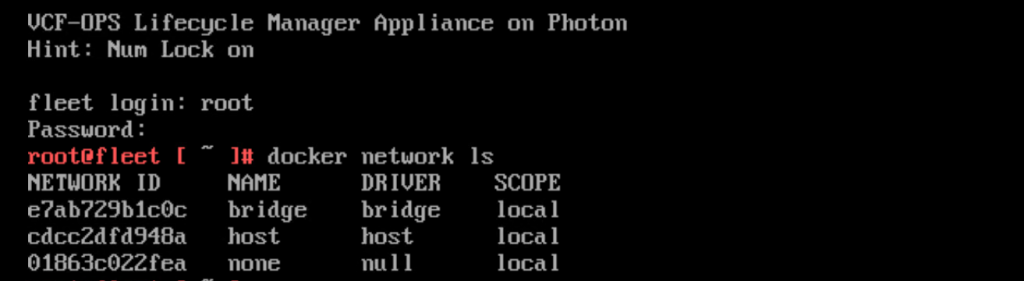
docker network inspect bridge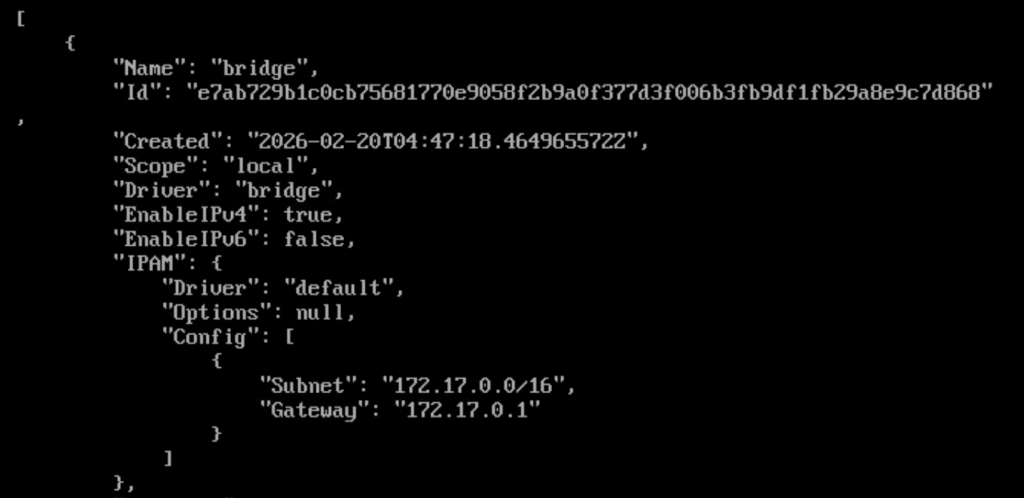
ip addr show docker0
This next step will be critical only if your VCF Fleet Managers has configured itself but for my deployment I encountered a vanilla VCF Fleet so I did not have anything int my /etc/docker/… directories. But this will vary on each deployment so ensure to follow and backup critical configurations
Create backup directory
sudo mkdir -p /etc/docker/backup
Backup existing daemon.json if it exists
sudo cp /etc/docker/daemon.json /etc/docker/backup/daemon.json.backup 2>/dev/null || echo "No existing daemon.json found"Backup Docker’s internal state
sudo cp -r /var/lib/docker/network /etc/docker/backup/network.backup 2>/dev/null || echo "No network state to backup"Stop Docker service
sudo systemctl stop docker
Verify Docker is stopped
sudo systemctl status dockerCreate or Edit the Docker Daemon Configuration
Use a safe, non-overlapping range. Example using 192.168.100.0/16 as the base:
sudo vi /etc/docker/daemon.json

{
  "bip": "192.168.100.1/24",
  "default-address-pools": [
    {
     "base": "192.168.100.0/16",
     "size": 24
    }
  ]
}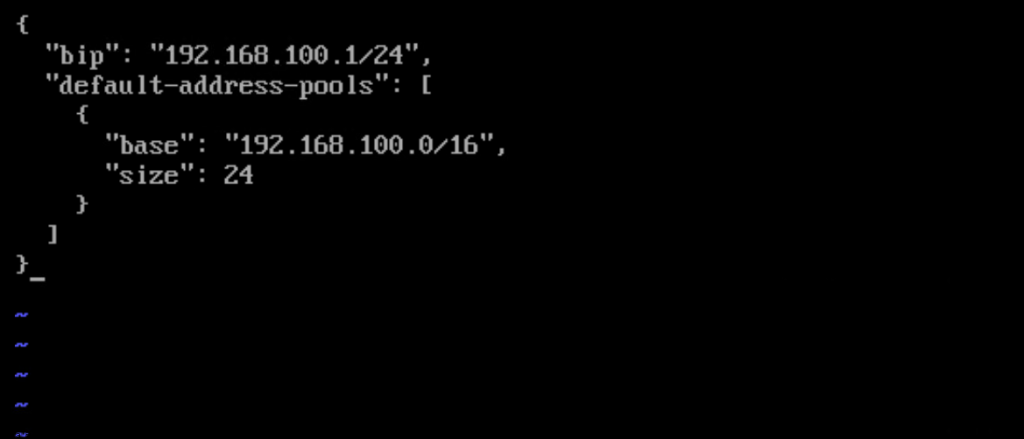
Explanation of keys:
- “bip”: Sets the IP and subnet for the docker0 bridge interface itself (must end in .1 for the gateway).
- “default-address-pools”: Defines the pool from which new user-defined bridge networks are automatically allocated (prevents future overlaps).

Validate your JSON
python3 -c "import json; json.load(open('/etc/docker/daemon.json'))" && echo "JSON is valid" || echo "JSON syntax error!"Verify the configuration
cat /etc/docker/daemon.json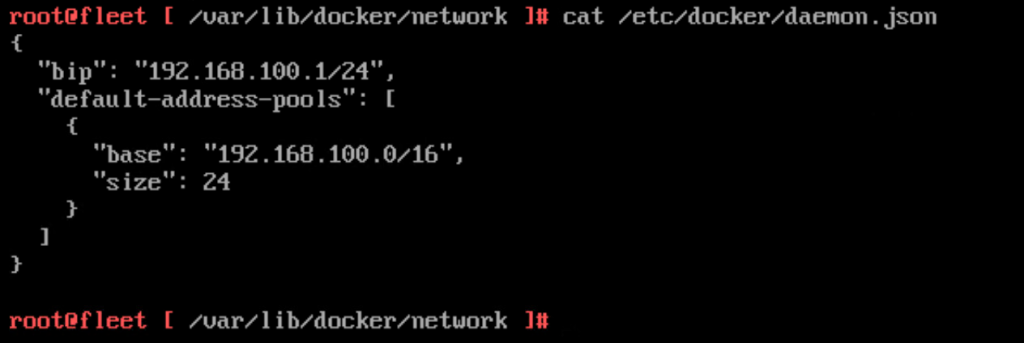
Start Docker Service

sudo systemctl start docker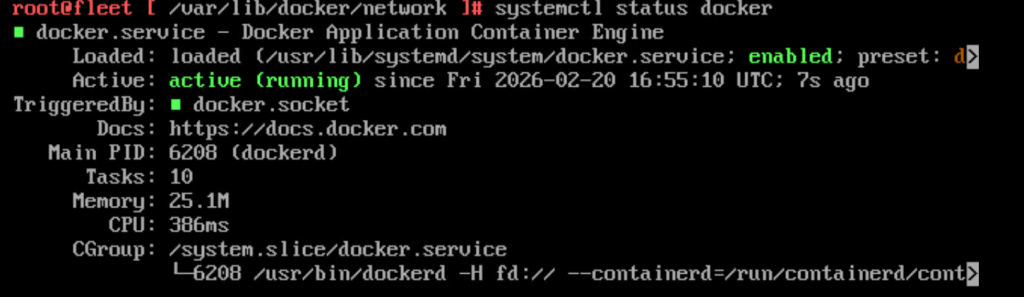
Check Service Status

sudo systemctl status docker
Verify new bridge network configuration
docker network inspect bridge | grep -A 5 "IPAM"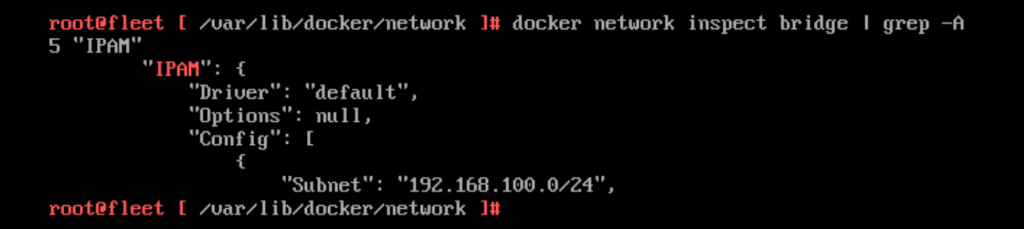
ip addr show docker0
ip route | grep docker0
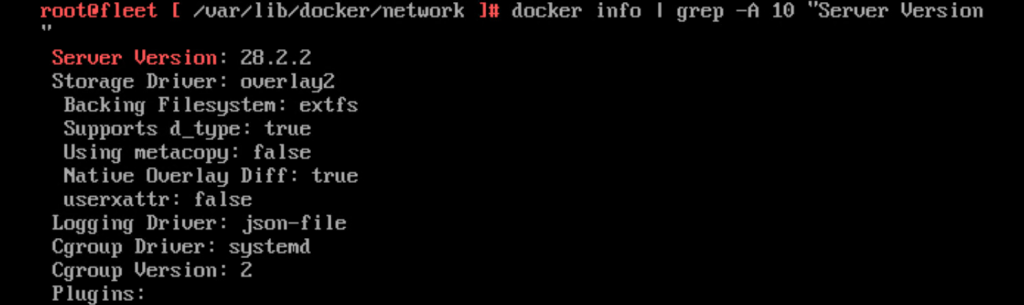
docker info | grep -A 10 "Server Version"
By proactively shifting away from the default 172.17.0.0/16 range, you eliminate a common source of subtle networking pain in VCF 9.0 deployments and ensure smoother Day-2 operations for your private cloud fleet.
Have you encountered this conflict in your VCF environment? Share your preferred non-default range in the comments!