
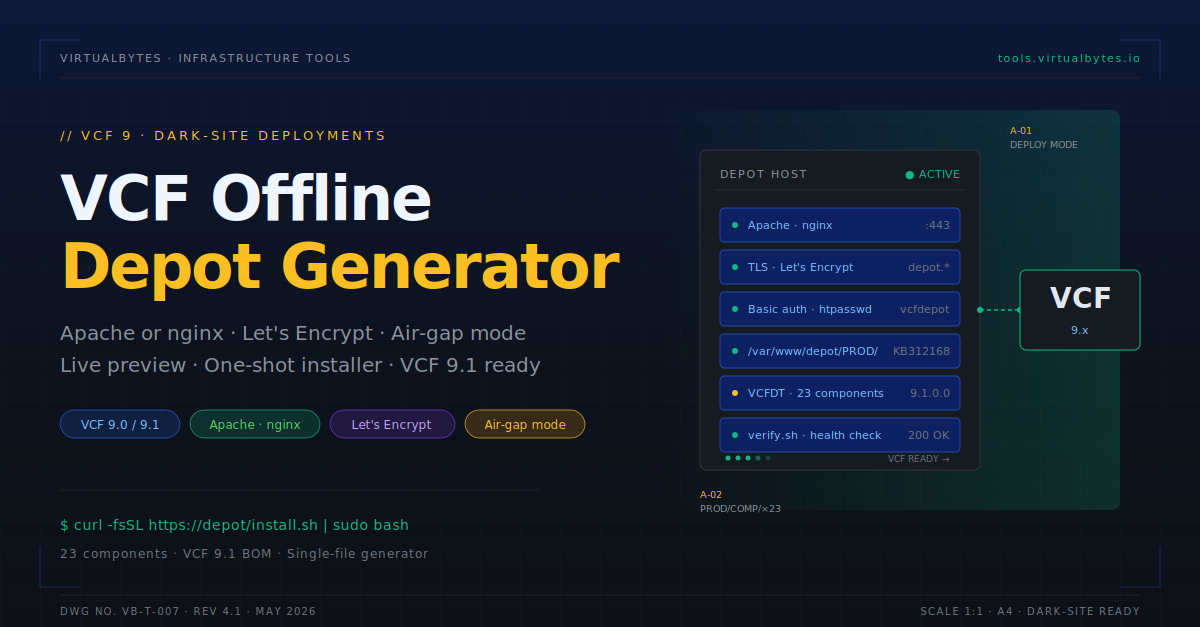
If you’ve stood up a VCF offline depot before, you know the drill. nginx or Apache vhost. TLS cert — Let’s Encrypt, internal CA, or self-signed. htpasswd (SDDC Manager rejects anonymous depots). The exact PROD/ directory tree from Broadcom KB 312168. systemd hardening. Firewall rules. A verify script that actually probes what the VCF Installer checks. And if your depot host is in a dark site — all of the above without internet on the depot host itself.
I’ve done this maybe a dozen times. Every single time, something is off — usually the http2 on; directive that doesn’t exist on Ubuntu’s nginx 1.24, or the docroot nested one level too deep so SDDC Manager throws “Path not found”, or forgetting to chown after VCFDT writes binaries as root. Each detour is a 30-minute fix. Then you go to do it again three months later on a different host and rediscover the same bugs.
This post walks through the VCF Offline Depot Generator — a browser-based tool I built specifically to stop redoing this work. By the end of the walkthrough you’ll have a deploy-ready depot for either an internet-connected host or a fully air-gapped one.

What the tool actually produces
You configure once (FQDN, cert strategy, OS, online vs offline) and the tool emits seven files:
| File | What it does |
|---|---|
install.sh | One-shot installer — preflight, packages, vhost, cert, htpasswd, directory tree, systemd hardening, smoke test |
prep.sh | (Offline mode only) Runs on an internet-connected workstation, bundles all OS dependencies into deps.tar.gz for transfer |
apache-vhost.conf or nginx-depot.conf | Web server config with TLS, basic auth, large-file delivery, security headers |
directory-tree.txt | The full PROD/COMP/ structure per KB 312168 + observed VCFDT 9.1 output (23 components) |
verify.sh | Probes every depot path SDDC Manager will check, with proper 200 / 404 / 401 colored output |
index.html | Landing page with live status checks, component count, copy-to-clipboard URLs, and CLI test snippet |
README.txt | Quickstart and gotchas specific to your chosen config |
Walkthrough — internet-connected Ubuntu depot
The default mode generates a one-shot installer for a depot host that can reach the internet. This is the simplest scenario.
Step 1 — Configure the basics
Open the tool. The left sidebar has seven numbered sections; you can ignore most of the defaults.
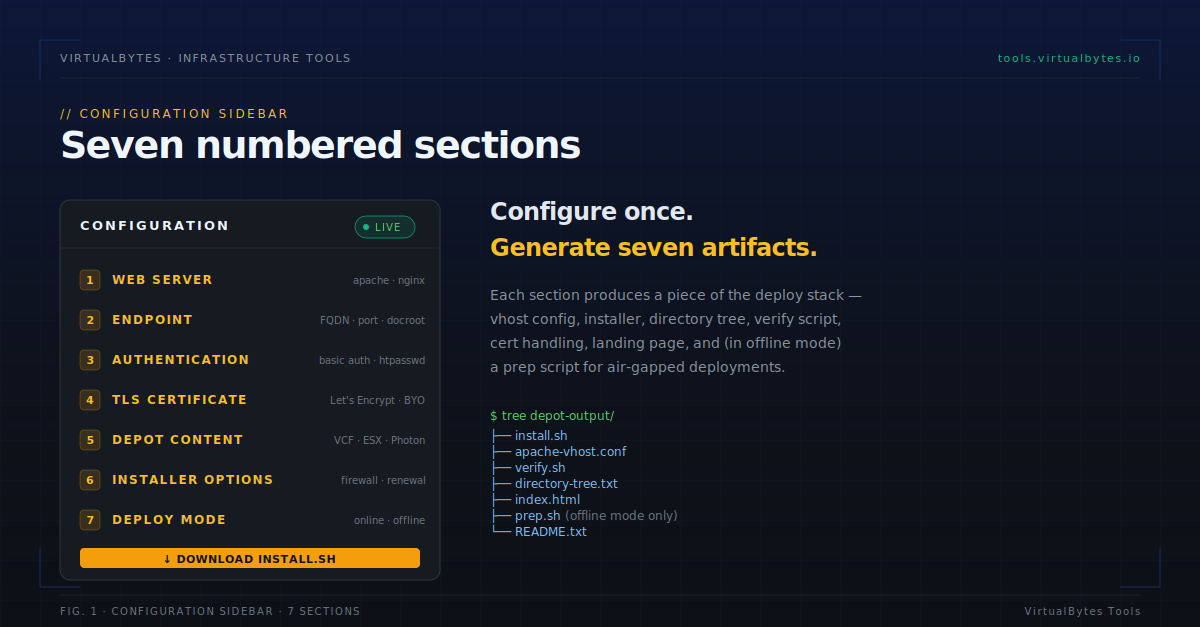
Set these four things:
- Web Server — Apache 2.4 or nginx. Either is fine; nginx is slightly faster for the large-file delivery VCFDT does, Apache is the more common default in enterprise environments
- Target OS — Ubuntu 24.04 LTS, Ubuntu 22.04 LTS, RHEL/Rocky 9, or Photon OS 5. The tool adjusts package names, paths, web user, and firewall tooling per OS
- Depot FQDN — must resolve from SDDC Manager. This becomes the TLS cert SAN, the vhost name, and the depot URL
- VCF Version — picks the BOM target. 9.1.0 has 23 components including new ones like
VCF_OBSERVABILITY_DATA_PLATFORM,VCF_SALT, andVIDB
The output panel updates live as you type. Watch the install.sh body fill in with your FQDN, paths, and version pinning.
Step 2 — Pick a cert strategy
Three options:
Let’s Encrypt with HTTP-01. Simplest path. Works when your depot FQDN resolves on the public internet and port 80 is reachable from Let’s Encrypt’s servers. certbot handles everything inline with the Apache/nginx plugin.
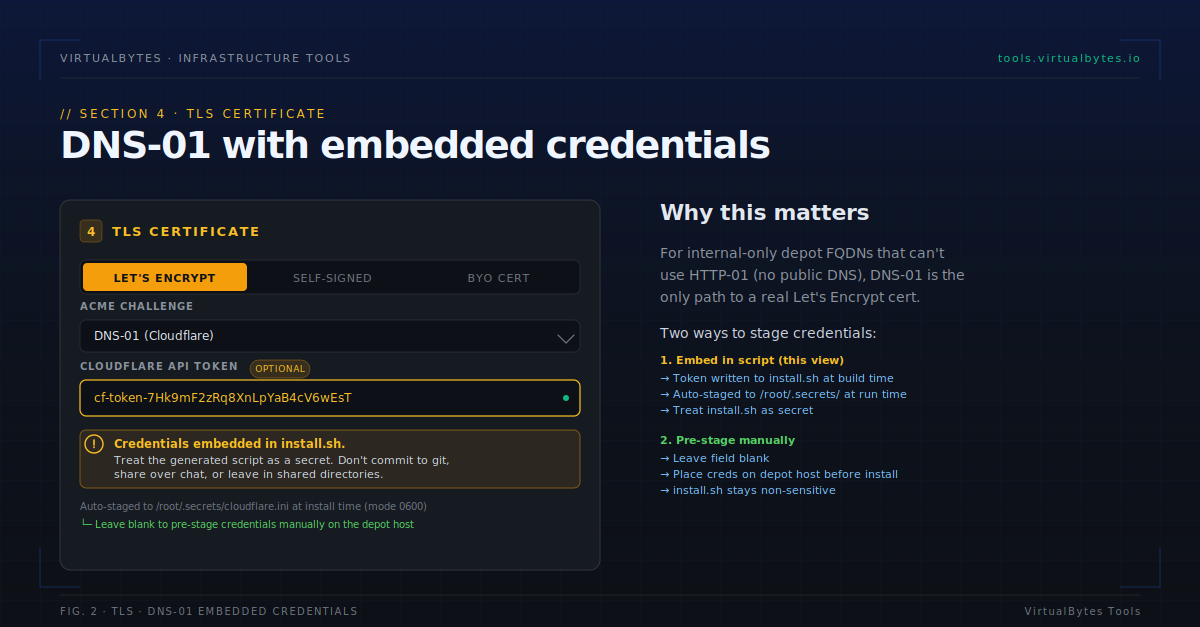
Let’s Encrypt with DNS-01. Use when the depot is on an internal-only FQDN that doesn’t resolve publicly. The tool supports Cloudflare and Route53. Paste your API token directly into the generator — it gets baked into install.sh and auto-staged to /root/.secrets/cloudflare.ini (mode 0600) at install time. The amber “Credentials embedded” warning appears the moment you fill in a token:
Self-signed or BYO. Self-signed generates a 4096-bit RSA cert valid for 825 days. BYO assumes you’ve placed your own cert and key at the OS-specific paths before running the installer. If you go this route, make sure VCF Operations trusts the cert chain (or the cert itself, for self-signed) — otherwise depot registration will fail at the TLS handshake.
For this walkthrough, leave it on Let’s Encrypt HTTP-01.
Step 3 — Keep Deploy Mode on “Online”
The Deploy Mode toggle in section 7 lets you switch between Online (one-shot) and Offline (two-script). We’ll cover offline mode below. For now, leave it on Online.
Step 4 — Download and run
Click Download install.sh. Transfer to your depot host and run as root:
scp install.sh [email protected]:/root/
ssh [email protected]
chmod +x install.sh
sudo ./install.sh
Or for non-interactive deploys (CI, Ansible, whatever):
sudo DEPOT_PASS='your-strong-password' ./install.shThe installer walks through 10 steps with colored banner output: OS check, DNS resolution, package install, certbot, vhost deploy, configtest (this catches the http2 on; bug fast on older nginx), tree scaffold, htpasswd, systemd unit, smoke test. Idempotent — safe to re-run if anything fails.
When it finishes, you’ll see a green ✓ banner with the depot URL ready to register in VCF Operations — in VCF 9.x, depot settings are configured centrally in VCF Ops, and SDDC Manager picks them up automatically.
Step 5 — Verify
Run verify.sh (generated alongside install.sh) to probe every path SDDC Manager will hit:
sudo /usr/local/sbin/vcf-depot-verify.shYou’ll get a colored matrix of 26 component paths plus the catalog files and HCL data. Green ✓ for populated, yellow ○ for “not entitled / expected empty” (because VCFDT only downloads what your Broadcom token has access to), red ✗ for actual failures.
Step 6 — Populate with VCFDT
The depot is built but empty. Now download the binaries:
cd /opt/vcf-download-tool
./vcf-download-tool.sh download \
  --token <your-broadcom-token> \
  --version 9.1.0.0
VCFDT writes directly into the depot structure. One gotcha here: VCFDT runs as root and writes files owned by root. The web server runs as www-data (Ubuntu) or apache (RHEL). After VCFDT finishes, fix ownership:
chown -R www-data:www-data /var/www/depot
chmod -R u=rwX,g=rX,o= /var/www/depot
(The generated README includes this; don’t skip it or you’ll get 403s on every binary.)
Step 7 — Register the depot in VCF Operations
In VCF 9.x, depot configuration is centralized in VCF Operations (the artist formerly known as Aria/vRealize Operations). SDDC Manager no longer holds the depot URL and credentials directly — instead, it queries VCF Ops as the source of truth. This is a meaningful architectural change from VCF 5.x and earlier where depot settings lived in the SDDC Manager UI directly.
To register your depot, log into VCF Operations as an admin and navigate to:
Fleet Management → Lifecycle
From there, register the depot (also called a “software repository” or “VCFDT depot” depending on the 9.x build you’re on) with these settings:
- Type: Offline depot (also called “VCF Download Tool Depot” in some 9.1 builds)
- URL:
https://depot.example.com/(whatever FQDN you set in the generator) - Username:
vcfdepot(or whatever you configured in section 3) - Password: the password you set during install
- Verify TLS: on (off only for self-signed certs you haven’t imported into the VCF Ops trust store yet)
VCF Ops runs a connection test in the background — pings the depot endpoint with the provided credentials, fetches the productVersionCatalog.json, validates the structure. Green check means the depot is registered and discoverable across the fleet.
Step 8 — SDDC Manager auto-connects via VCF Ops
Here’s the nice part: once the depot is registered in VCF Ops, every SDDC Manager instance in the fleet inherits it automatically. There’s no per-SDDC-Manager configuration step.
To verify in SDDC Manager UI:
Lifecycle Management → Release Versions
You should see available bundles populated from your depot within a minute or two of the VCF Ops registration. If you see “No bundles available” after 5 minutes, the depot is reachable but empty — go back and run VCFDT to populate it (step 6). If you see “Repository unreachable”, check the VCF Ops connection test first, then DNS resolution from the SDDC Manager appliance to your depot FQDN.
VCF Ops is a hard dependency in 9.x. If you’re upgrading from VCF 5.x where SDDC Manager held depot config directly, your migration must deploy VCF Ops before you can register the depot. Plan accordingly — VCF Ops adds non-trivial resource overhead (4 vCPU / 16 GB / 274 GB minimum per node for a 3-node cluster). For tiny lab deployments where you don’t want to run VCF Ops, the older direct-SDDC-Manager depot path still works in fallback / single-instance mode, but it’s not the supported architecture going forward.
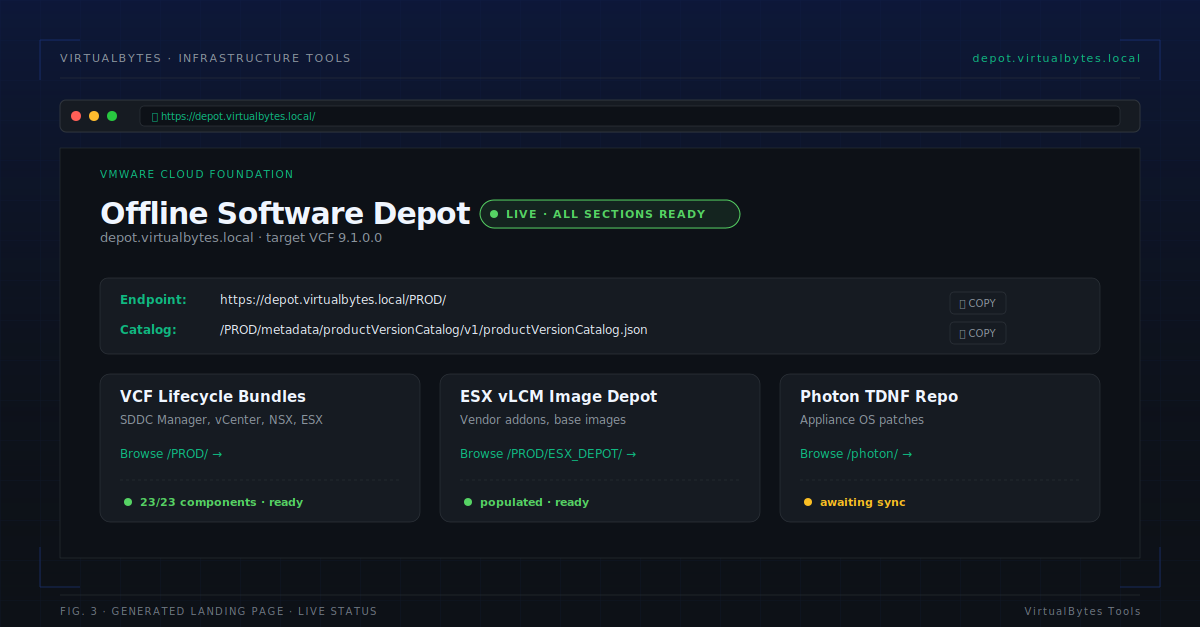
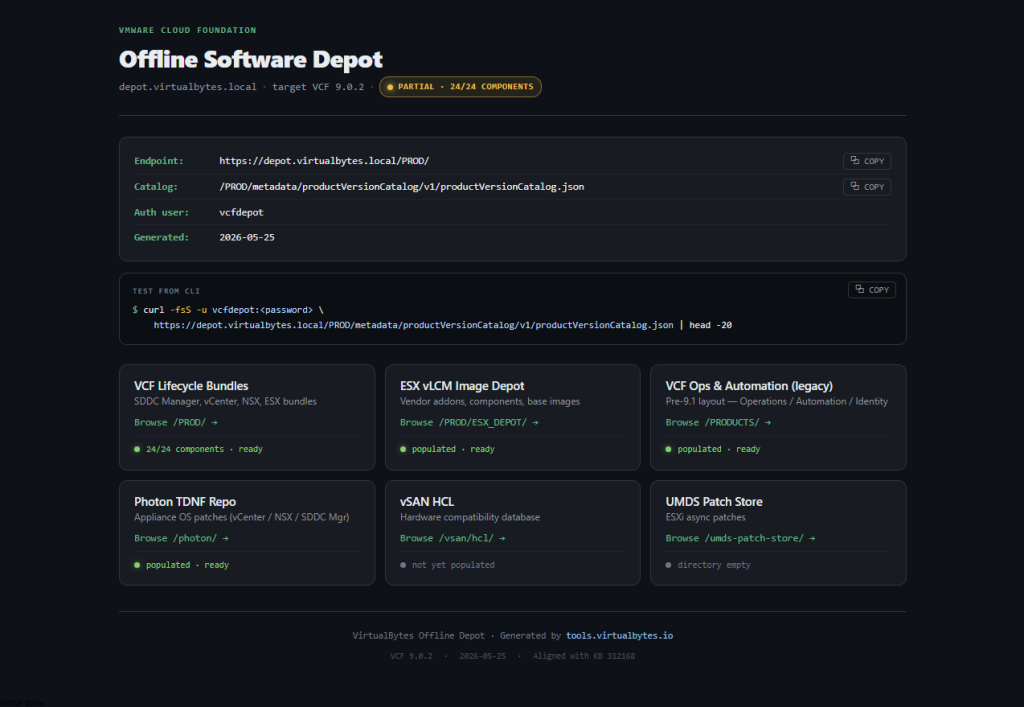
The generated index.html landing page is also worth bookmarking — visit https://depot.example.com/ in a browser and it’ll show live status (probes the 23 component dirs in parallel), a count of populated components, copy-to-clipboard URLs, and a ready-to-paste curl test command.
Walkthrough — air-gapped depot (two-script workflow)
The above flow assumes the depot host can reach the internet. Often it can’t — regulated environments, government clouds, fully isolated security zones. Internal CA, no egress, no Let’s Encrypt, no apt-get from public mirrors.
Switch the Deploy Mode toggle in section 7 to Offline. Two things happen immediately:
- The cert strategy auto-forces BYO (Let’s Encrypt can’t reach the ACME server from a dark site — there’s no point pretending otherwise)
- A new
prep.shartifact appears in the output tabs
How the offline workflow runs
The split:
| Phase | Where | What |
|---|---|---|
| 1. Prep | Internet-connected workstation matching depot OS | Run prep.sh → bundles all OS packages into deps.tar.gz |
| 2. Transfer | Removable media / one-way diode / authorized sftp | Carry deps.tar.gz + install.sh + your cert files |
| 3. Install | Dark-site depot host | Run sudo ./install.sh --offline /root/deps.tar.gz |
| 4. Populate | VCFDT on jumphost, then rsync to depot | (VCF binaries are 80-100 GB, separate transfer) |
Critical: same-OS-version rule
prep.sh enforces a strict OS version check. You cannot prep on Ubuntu 22.04 to deploy to an Ubuntu 24.04 depot. Package versions diverge across releases and dpkg will reject the bundle. The prep script refuses to continue without explicit confirmation if there’s a mismatch. Match the workstation OS to the depot OS exactly.
Walking through it
On the internet-connected prep host (same OS as your dark depot):
# Stage your cert and key in the cwd before running prep.sh
# (they get auto-bundled into the tarball)
cp depot.crt depot.key .

sudo ./prep.sh
# → Produces ./deps.tar.gz (typically 15-40 MB)
Transfer everything to the dark site by whatever means your security policy allows. Then on the depot host:
# Stage the cert + key at the OS-expected paths
mv depot.crt /etc/ssl/certs/depot.internal.crt
mv depot.key /etc/ssl/private/depot.internal.key

# Run the installer in offline mode
sudo ./install.sh --offline /root/deps.tar.gz
The installer detects offline mode and uses dpkg -i / rpm -Uvh from the extracted bundle instead of repos. No internet required at any point on the depot host.
The bundle does not include VCF binaries themselves — those are 80-100 GB and need to come over separately. VCFDT runs on a different internet-connected host with your Broadcom token, then rsync or sneakernet to the depot. The README that ships with the install covers this.
Example of Web Interface (This demo is on Ubuntu 26.04 LTS)
Things that bite people
A short list of mistakes I’ve made personally and now bake into the generator so you don’t have to:
Wrong document root depth. SDDC Manager expects <docroot>/PROD/ as an immediate child. If you nest the depot one level deeper (/var/www/depot/vcf/PROD/), SDDC Manager returns “Path not found – /metadata/productVersionCatalog/v1/productVersionCatalog.json” (Broadcom KB 413848). The generator always uses the right structure but worth knowing if you tweak paths.
http2 on; on nginx < 1.25.1. The standalone http2 on; directive only exists in nginx 1.25.1+. Ubuntu 22.04 ships 1.18, Ubuntu 24.04 ships 1.24 — both reject it with “unknown directive http2”. The generator uses the universal listen 443 ssl http2; syntax that works on all versions, and the installer runs nginx -t immediately after vhost deploy so you catch this in the first 10 seconds, not after a 30-minute confused debug session.
Empty component directories aren’t broken. VCFDT only populates dirs your Broadcom token is entitled to download. Empty ESX_HOST/, NSX_T_MANAGER/, or VRO/ after a run is expected, not a failure. Check VCFDT logs and your token’s entitlements before troubleshooting the depot itself. The verify script treats 404s on optional components as a yellow ○ (not red ✗) specifically because of this.
Embedded credentials in install.sh. If you embed a Cloudflare token or AWS keys in the generated script, that file becomes a secret artifact. Don’t commit to git, don’t paste in chat or issue trackers, don’t leave in shared dropboxes. Rotate the credentials after deploy. The tool shows an amber security warning the moment you fill in a credential field, but it’s worth restating: treat that install.sh like a private key.
What it doesn’t do
Setting expectations honestly:
- It doesn’t download VCF binaries. That’s VCFDT’s job. The tool builds the infrastructure (web server, directory tree, auth, certs); VCFDT writes the binaries into the structure the tool scaffolded
- It doesn’t manage cert renewal forever. For Let’s Encrypt, it installs a systemd timer that renews twice daily. For BYO certs, you’re on your own — set a calendar reminder
- It doesn’t multi-region replicate. Each depot is independent. If you want multiple depots in different regions for latency or compliance, run the generator once per region (you can re-use the same config)
- It doesn’t manage upgrades. When VCF 9.2 drops in 2027 and adds three more components, you’ll need to either regenerate the depot or manually
mkdir -pthe new paths. I’ll update the tool’s BOM target list when 9.2 ships
Wrap
The tool is at tools.virtualbytes.io/vcf-offline-depot-generator. Free, no signup, all browser-side processing, zero tracking. Full help guide at VCF Offline Depot Help Guide.
If you’re running multiple VCF deployments in dark sites and want a paired set of tools, also worth checking:
- VCF Reference Architecture Builder — diagram the management plane this depot will deploy
- VCF Upgrade Path Advisor — plan the hop sequence from your current VCF version to the target the depot will serve
- IP Subnet Planner — carve management/vMotion/vSAN/TEP CIDRs before the deploy
Until then: stop hand-rolling depots. 🙂


8 comments
Hi Tommy,
Thanks for this, appreciate, been trying to setup RockyLinux 9.7 since yesterday but couldn’t.
I tried the 1-Shot setup and it failed with the error..
════════════════════════════════════════════════════════════
VCF Offline Depot Installer – vcfdepot.vlab.lab
════════════════════════════════════════════════════════════
▸ Checking OS compatibility
✓ Detected: Rocky Linux 9.7 (Blue Onyx)
▸ Checking DNS resolution
✓ DNS resolves vcfdepot.vlab.lab
▸ Installing system packages
Error: Unable to find a match: apache2-utils
[root@vcfdepot ~]# dnf install https-tools -y
Last metadata expiration check: 0:21:41 ago on Tue 26 May 2026 11:05:32 BST.
No match for argument: https-tools
Error: Unable to find a match: https-tool
Hi!
Confirmed two bugs in the Rocky 9 path – the script was installing the Debian package name (apache2-utils instead of httpd-tools) and wasn’t enabling EPEL, which is required for certbot on Rocky/RHEL 9. Both fixed in the latest build of the tool. Regenerate your install.sh from tools.virtualbytes.io and re-run of a new install.sh you should be past both errors now. Thanks for the report!
Thanks Tommy,
I regenerated the script and ran into the same issue..
[root@vcfdepot ~]# ./install.sh
════════════════════════════════════════════════════════════
VCF Offline Depot Installer – vcfdepot.vlab.lab
════════════════════════════════════════════════════════════
▸ Checking OS compatibility
✓ Detected: Rocky Linux 9.6 (Blue Onyx)
▸ Checking DNS resolution
✓ DNS resolves vcfdepot.vlab.lab
▸ Installing system packages
Error: Unable to find a match: apache2-utils
[root@vcfdepot ~]#
Also I searched the script file, and found the below..
# ─── Package installation ────────────────────────────────────
step “Installing system packages”
dnf install -y httpd mod_ssl apache2-utils curl openssl tree >/dev/null <—
ok "Web server (httpd mod_ssl) + tools installed"
I removed the apache2-utils text, re-ran the script, and ended up with the below error..
▸ Validating web server config
✗ Apache config test FAILED — see /tmp/vcf-depot-configtest.log
./install.sh: line 247: apache2ctl: command not found
Hey should be fixed! There were three bugs in the Rocky/RHEL path that are now sorted in the tool
I tested this on ubuntu for the deployment and went smooth but Rocky is tad different but give it a try!
Wrong package name (apache2-utils is Debian; RHEL uses httpd-tools)
Missing EPEL repo (certbot lives in EPEL on Rocky 9)
Wrong config-test command (apache2ctl -> apachectl)
Regenerate your install.sh from the tool — do a hard refresh first (Ctrl+Shift+R) so you don’t get the cached old version.
One heads-up for your setup: vcfdepot.vlab.lab isn’t publicly resolvable, so Let’s Encrypt won’t work — it can’t validate a .lab domain over HTTP-01. Pick Self-Signed in the cert section instead (then import the cert into VCF Operations). The tool now warns you about this automatically if you pick Let’s Encrypt with an internal domain.
Give it another go and let me know how it lands.
Thanks for looking into this, if it works with Ubuntu I’ll use that..
Thanks a lot..
Cheers!..
You are welcome! I enjoy helping out!
Yeah multiple OS’s and trying to keep the logic of the tool but sometimes certain packages will get renamed etc so there will be newer versions of the tool.
Thank you!
Also, thanks for reminding, I do use selfsigned certificates..
↑ Top of comments