Tested on VCF 9.1.1.0, September 2026
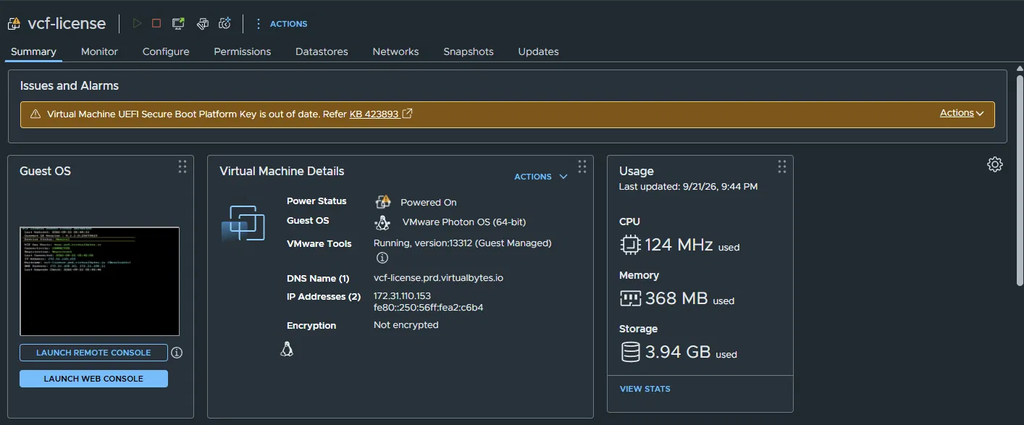
After upgrading to VCF 9.1.1, a new warning showed up on a handful of my VMs and rolled up to the cluster level:
Virtual Machine UEFI Secure Boot Platform Key is out of date. Refer KB 423893
KB 423893 covers everything, but it’s long and spans every ESX version back to 7. This post is the practical version: what the alarm means, how I figured out which VMs actually needed work across three vCenters, and the two gotchas that cost me the most time.
What the alarm is telling you
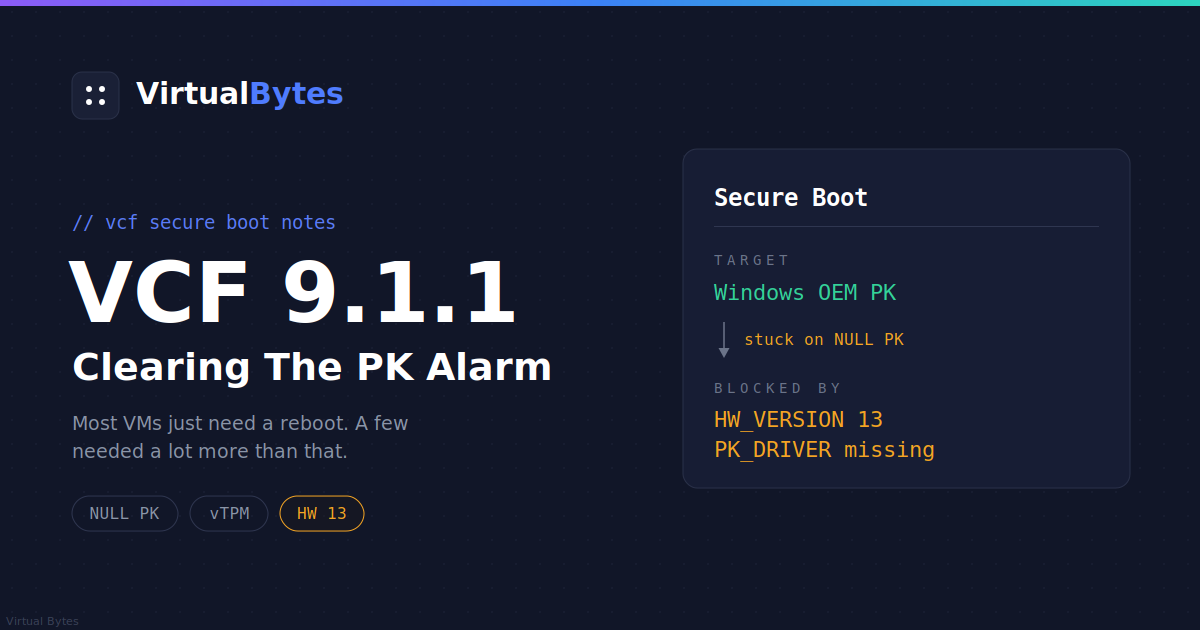
VMs created on ESX hosts earlier than 9.0 were given a placeholder Platform Key (PK) in their virtual NVRAM. Nothing breaks because of it. Those VMs boot fine today and will keep booting.
The problem sits further down the Secure Boot chain. Microsoft is replacing its 2011 Secure Boot certificates with 2023 versions. Without a real Platform Key, the guest can’t install the new KEK, and without the new KEK it can’t apply future DB and DBX revocation updates.
9.1.1 adds three pieces to deal with this:
- The alarm itself, which fires on powered on VMs with Secure Boot enabled that still have the placeholder key.
- A silent PK update that fixes VMs without a vTPM during a guest reboot.
- A capsule PK update for Windows VMs with a vTPM, delivered through VMware Tools 13.1.5 and a recent Windows cumulative update.
The alarm only appears once both vCenter and ESX are on 9.1.1.0.
Step one: take inventory
My first instinct was to start rebooting everything that had the alarm. Don’t. The right fix depends on the hardware version and on two settings per VM, Secure Boot and vTPM, so pull those first.
If you don’t have PowerCLI yet:
Install-Module VCF.PowerCLI -Scope CurrentUser -Force -AllowClobber
Set-PowerCLIConfiguration -InvalidCertificateAction Ignore -ParticipateInCEIP $false -Scope User -Confirm:$false
This works on Linux too. I ran part of this from an Ubuntu box with PowerShell 7 installed through snap, and nothing needed to change.
Connect and dump what matters:
Connect-VIServer -Server <vcenter fqdn>
Get-VM | Select Name, PowerState, HardwareVersion,
  @{N='SecureBoot';E={$_.ExtensionData.Config.BootOptions.EfiSecureBootEnabled}},
  @{N='vTPM';E={[bool]($_.ExtensionData.Config.Hardware.Device | ? {$_ -is [VMware.Vim.VirtualTPM]})}},
  @{N='GuestOS';E={$_.ExtensionData.Config.GuestFullName}} | Format-Table -AutoSize
If you manage more than one vCenter, disconnect before switching with Disconnect-VIServer -Server * -Confirm:$false. PowerCLI will happily query every server you’re connected to, and your list will be a mix of both.
Sorting the VMs
Every VM lands in one of these buckets:
| Secure Boot | vTPM | What to do |
|---|---|---|
| Off | Off | Nothing required. |
| On | Off | Reboot the guest. The silent update handles it. |
| On | On (supported Windows) | Current cumulative update, VMware Tools 13.1.5, reboot. |
| On | On (Linux or older Windows) | Manual uefi.secureBoot.PK.resetOnce setting. Snapshot first and suspend BitLocker or LUKS. |
| Off | On | Leave it alone. Broadcom says not to touch these. |
On top of that, any VM below hardware version 14 needs its virtual hardware upgraded before any of this will work.
Most of my VMs needed nothing. One of my management vCenters had 39 VMs, and only four had Secure Boot on at all. vCenter, SDDC Manager, NSX, VCF Operations, the Harbor pods and the Kubernetes nodes all run with Secure Boot off.
Check what’s actually alarming
Rather than guess, ask vCenter:
Get-VM | Get-View | ? { $_.TriggeredAlarmState } |
  Select Name, @{N='Alarms';E={($_.TriggeredAlarmState | % { (Get-View $_.Alarm).Info.Name }) -join '; '}}
On the first vCenter, the three Supervisor control plane VMs had Secure Boot on but came back clean. The only real offender was the VCF license server appliance, with Secure Boot on, no vTPM, and hardware version 14. A guest reboot fixed it:
Get-VM <license server vm> | Restart-VMGuest -Confirm:$falseA few minutes later the alarm was gone. Broadcom also has a separate article for the license server specifically (KB 455905), so read that before touching yours.
Gotcha one: license servers on hardware version 13
The license server appliances on my other two vCenters were also alarming, so I expected the same easy fix. They were both still on hardware version 13, and the PK update requires version 14 or later. On a version 13 VM, a reboot does nothing.
Here’s the order that worked:
Get-VM <license server vm> | Shutdown-VMGuest -Confirm:$false
# wait for PoweredOff
Get-VM <license server vm> | New-Snapshot -Name "pre hw upgrade"
Set-VM -VM <license server vm> -HardwareVersion vmx-22 -Confirm:$false
Start-VM <license server vm>
Get-VM <license server vm> | Restart-VMGuest -Confirm:$false
That last reboot matters. On one of the two, the alarm stuck around after the upgrade and first power on, and only cleared after a separate guest reboot. The key gets written during a reboot, not on the first boot after the hardware change.
A word of caution: upgrading the hardware version of a VCF managed appliance isn’t a documented Broadcom procedure. It worked for me, but if you’re doing this somewhere that matters, check with support first. And if a future VCF upgrade precheck complains about that appliance, now you know why. Delete the snapshot once you’re happy with it.
Gotcha two: Windows with a vTPM and a missing driver
The last VM left was a Windows 11 jump box with Secure Boot and a vTPM, which means the capsule update path. On paper it was ready. It was on 25H2 with the September cumulative update installed, and VMware Tools showed 13.1.5. I rebooted it and the alarm stayed.
To see what was going on inside the guest without opening a console, I used Invoke-VMScript:
$cred = Get-Credential
Invoke-VMScript -VM <vm> -GuestCredential $cred -ScriptType PowerShell -ScriptText @'
Get-PnpDevice -FriendlyName "*Platform Key*" | Format-Table FriendlyName, Status -AutoSize | Out-String
(Get-SecureBootUEFI -Name PK).Bytes.Length
'@ | Select -ExpandProperty ScriptOutput
The device check came back empty and the key was 45 bytes, which is the placeholder. The Platform Key Firmware driver had never been installed.
The capsule update relies on a virtual firmware device that only appears after the VM is fully powered off and on while running on a 9.1.1 host. A guest reboot doesn’t count. I had installed Tools 13.1.5 before that device existed, so the installer had nothing to attach the driver to and skipped it.
The fix:
- Fully power cycle the VM on a 9.1.1 host. Shut it down, wait for it to show powered off, then power it on.
- Repair VMware Tools from Settings, Apps, VMware Tools, Modify, then Repair. This installs the driver onto the device that now exists.
- Reboot.
After that, Get-SecureBootUEFI -Name PK returned a real key and the alarm cleared.
If you’re working through Windows VMs with a vTPM, do the power cycle before you install Tools 13.1.5 and it will just work.
Horizon and golden images
My Horizon instant clone desktops are Windows 11 with a vTPM, so I expected them to be the worst part. If your desktops are instant clones, fix the golden image rather than the desktops. Anything you change on a clone is gone on the next refresh or push.
In my case, nothing needed fixing. The desktops and the golden image were all hardware version 22 and had been built on 9.x hosts, and VMs created there get a proper Platform Key from the start. To confirm, I powered on the golden image and checked from an elevated PowerShell prompt inside the guest:
(Get-SecureBootUEFI -Name PK).Bytes.Length45 or less means the old placeholder. Mine was well above that. On Linux guests, mokutil --pk does the same job, and empty output means the key needs updating.
The blind spot: powered off VMs
The alarm only evaluates VMs that are powered on. Templates, cold standby servers and anything else sitting powered off won’t show up, even with the old key.
For those, keep an eye out for the alarm the next time you power one on, and reboot it once if it appears. For templates, do it on purpose: power on, reboot, power off. Anything you clone from them afterward inherits the fixed key.
Wrapping up
Across three vCenters and well over a hundred VMs, the actual work came down to four VMs: three license server appliances and one Windows jump box. Most of the time went into figuring out what I had and why the obvious fix didn’t work.
If you remember two things from this post:
- Anything below hardware version 14 needs a hardware upgrade before the Platform Key can change, and a guest reboot after that.
- On Windows with a vTPM, power cycle the VM on a 9.1.1 host before installing Tools 13.1.5, or you’ll end up repairing Tools afterward.
Once the Platform Key is in place, the KEK and DB updates happen through Windows Update and your normal OS tooling. That part isn’t VMware’s job anymore.